
Ditch the Desktop App – Browser Label Printing for the Brother PT-E560BT
A driver-free, backend-free SPA that prints to a Brother PT-E560BT over USB or Bluetooth Classic using the Web Serial API – because installing P-touch Editor in the burrow is a hard no.
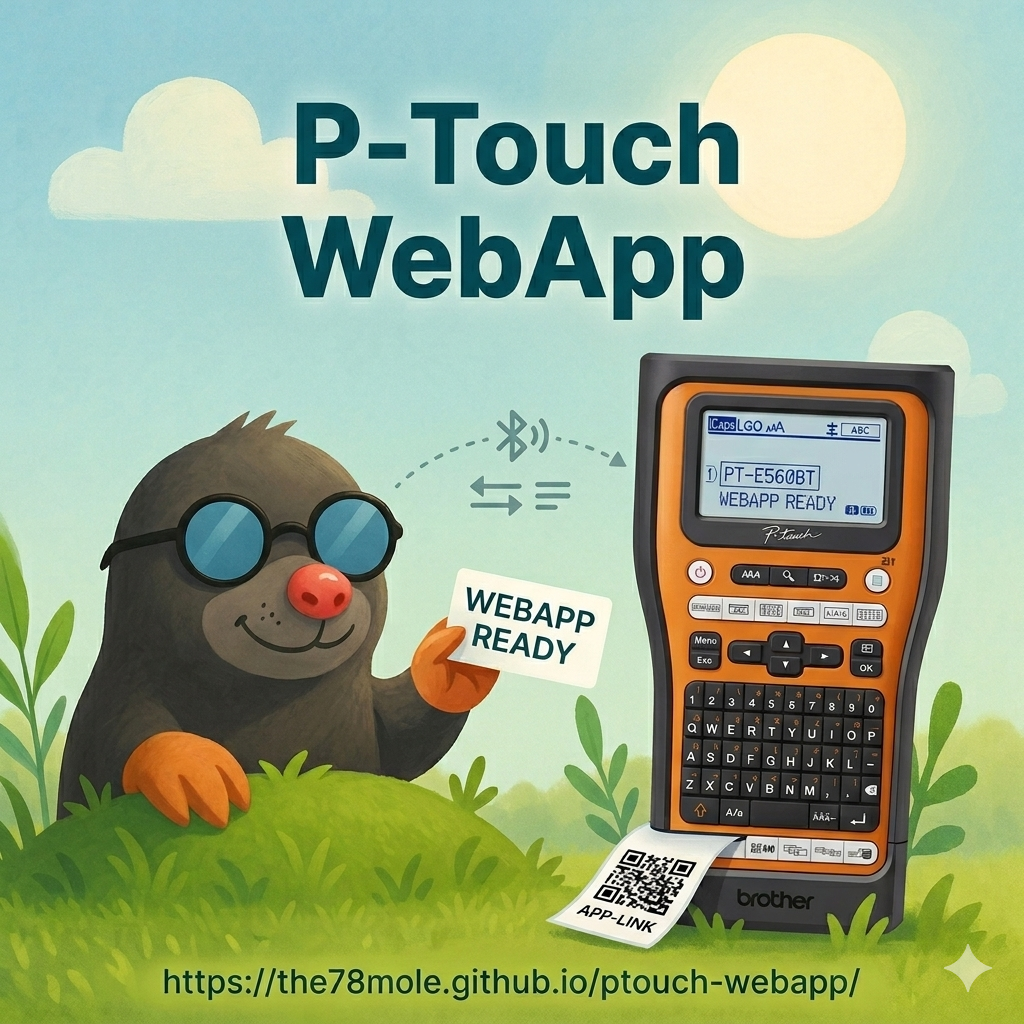
Every mole eventually labels its tunnels. Patch panel port 14 is "the server room switch uplink", not "mystery cable, do not unplug" – I learned that distinction the hard way at 2 am. The answer is obviously a label maker. The answer to which label maker turned out to be the one the Molewife spotted at the hardware store: a Brother PT-E560BTVP, all orange and industrial-looking and promising to survive being sat on by a badger.
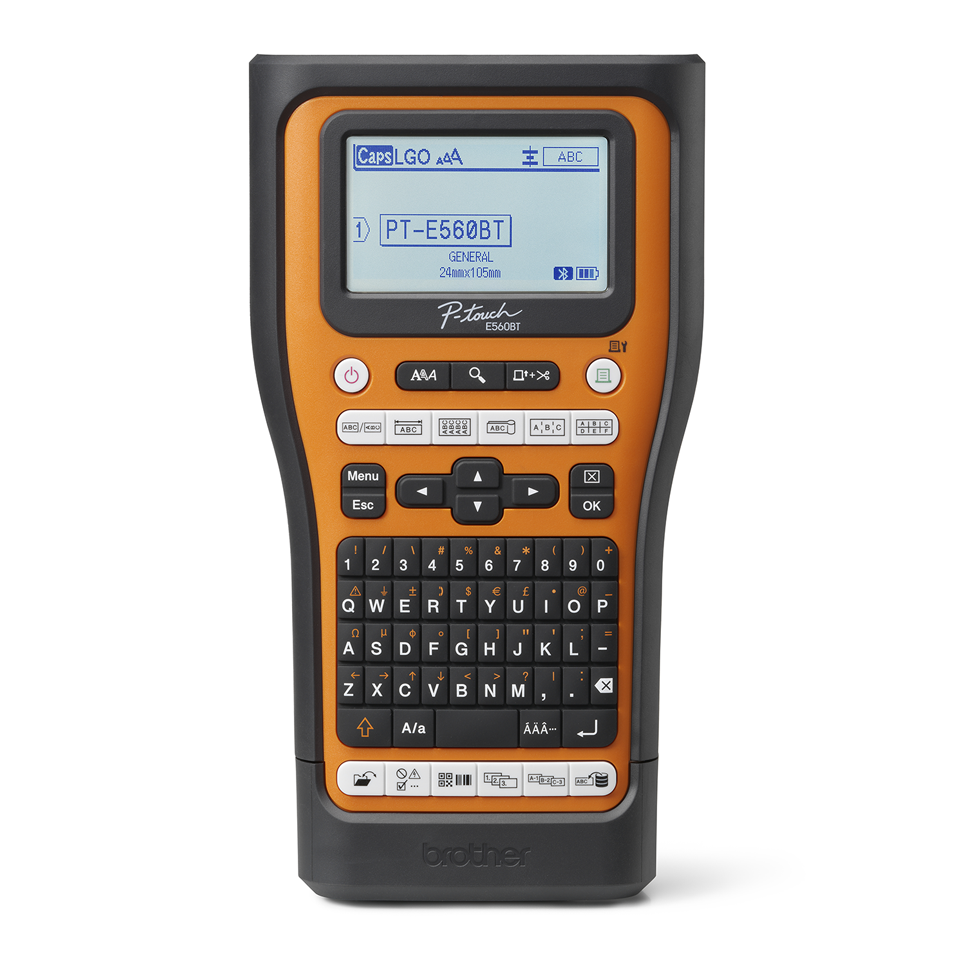
The hardware is excellent. The official software is the usual desktop-app tax: download P-touch Editor, register an account, wait for the installer, wrestle with the driver, repeat on every machine you use. For a device that lives on the workbench and gets grabbed between soldering sessions, that friction is unacceptable. There had to be a better tunnel.
The Stack at a Glance
| Layer | Choice | Why |
|---|---|---|
| Runtime | Browser (Chrome/Edge) | Web Serial API, no install |
| Build tool | Vite 8 | Fast, ESM-native, tiny output |
| Styling | Tailwind CSS v4 | Dark-mode utility classes, zero config |
| Printer comms | Web Serial API | Works over USB and BT Classic SPP |
| QR codes | qrcode npm package | One dependency, client-side only |
| i18n | Hand-rolled (EN / DE) | No framework overhead |
No backend. No Electron wrapper. No driver installation. Open a tab, click Connect Printer, print a label.
The app lives at the78mole.github.io/ptouch-webapp and the source is on GitHub at the78mole/ptouch-webapp.
Why Web Serial and Not Web Bluetooth?
This is the first question everyone asks. The PT-E560BT has Bluetooth right there in the name, so why use a serial API?
The answer is in the protocol stack. Web Bluetooth only supports Bluetooth Low Energy (BLE). The PT-E560BT uses Bluetooth Classic with the Serial Port Profile (SPP) – a fundamentally different radio protocol aimed at replacing RS-232 cables, not at IoT sensors. The two are not interchangeable at the browser API level.
What saves us is that every operating system exposes a paired Bluetooth SPP device as a virtual COM port – the same kind of serial port the browser's Web Serial API already knows how to open. So whether the printer is plugged in via USB or connected over Bluetooth, from the browser's perspective it looks identical: a serial port with a baud rate and a byte stream.
Connecting the Printer
USB
Plug the printer in. Click Connect Printer. Select the Brother device in the browser's port picker. The status dot turns green.
On Linux the port appears as /dev/ttyUSB0 or /dev/ttyACM0. If the picker is empty, your user probably isn't in the dialout group yet:
sudo usermod -a -G dialout $USER
# Log out and back in for the change to take effect
Bluetooth (Windows / macOS)
Pair the printer once through the OS Bluetooth settings (PT-E560BT_xxxx, PIN 0000). After pairing the OS creates a virtual COM port automatically. Open the app, click Connect Printer, pick the COM port.
Bluetooth on Linux
Linux doesn't create a virtual serial port for Bluetooth devices automatically.
Gnome usually provides a Bluetooth-Manager, where you can pair the printer. After pairing, you need to manually bind the Bluetooth device to a serial port using rfcomm.
If you tend to use the command line, it gets a bit more complicated, but it's still straightforward:
# Step 1 – pair via bluetoothctl
bluetoothctl
power on
scan on
pair   94:DD:F8:A1:35:80   # replace with your printer's MAC
trust  94:DD:F8:A1:35:80
quit

# Step 2 – bind to a serial device
sudo rfcomm bind 0 94:DD:F8:A1:35:80
# Creates /dev/rfcomm0
Then connect to /dev/rfcomm0 in the port picker. To survive a reboot, add the bind command to /etc/rc.local or a small systemd unit.
The Web App
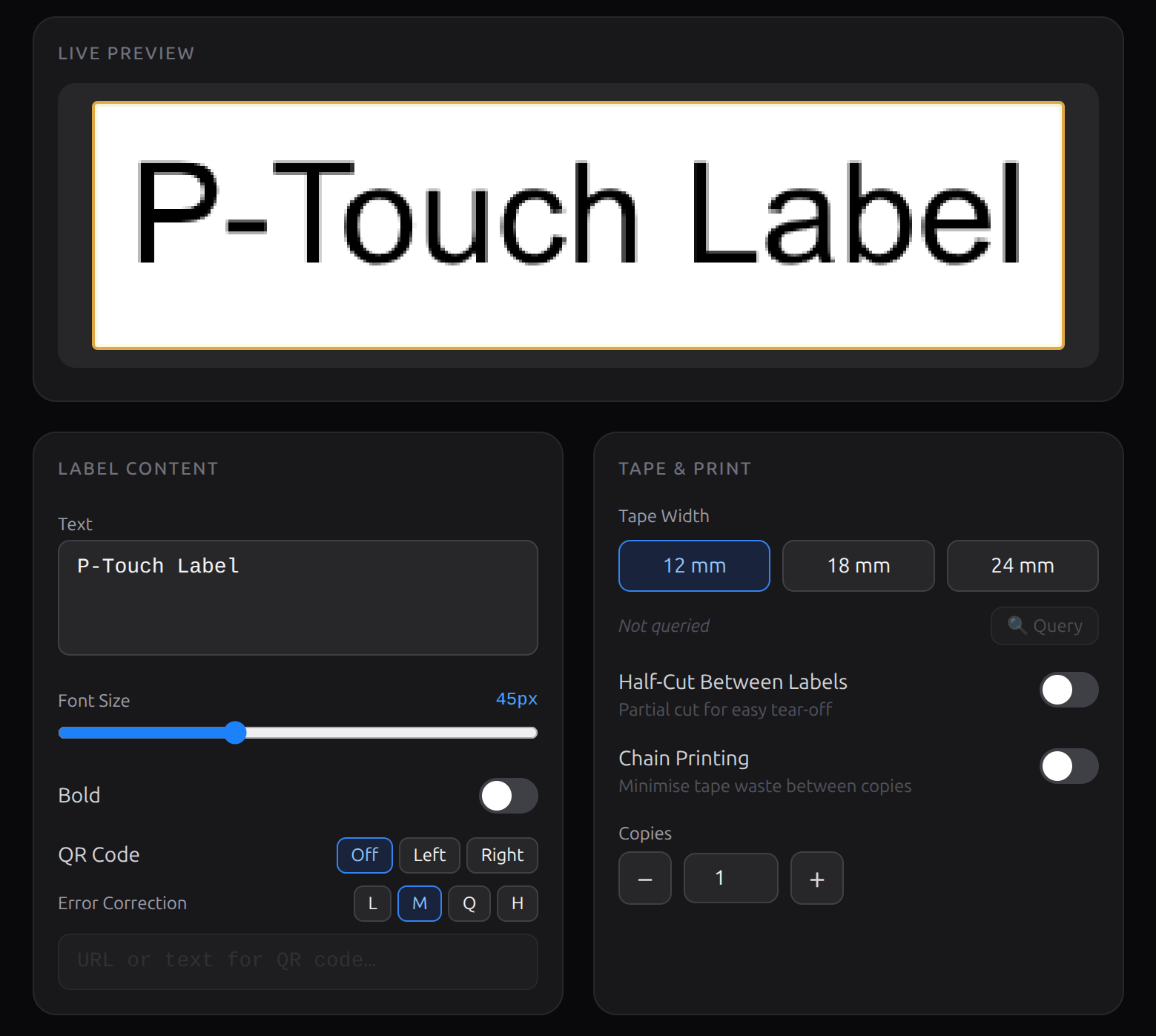
The UI is intentionally minimal: a text area, font-size slider, bold toggle, tape-width selector, copy count, and a half-cut toggle. A live canvas preview updates on every keystroke so you know exactly what the printer will produce before a single dot of ink (or better heat) hits the tape.
Notable details:
- Multi-width tape support – 12, 18, and 24 mm TZe cartridges, each with the correct printable dot count from Brother's own
tape_info[]table. - QR code mode – swap the text label for a scannable QR code; handy for asset tags and network gear.
- Half-cut –
ESC i K 0x08between labels makes tear-off trivial without cutting all the way through the backing. - Chain printing – minimises tape waste when printing multiple labels in sequence.
- EN / DE i18n – the entire UI switches language with one click.
- Debug log panel – every byte sent to the printer is shown in hex. Invaluable for protocol archaeology.
Under the Hood: The Raster Protocol
The PT-E560BT speaks Brother's raster command language, reverse-engineered and documented in the open-source libptouch / ptouch-print project. The print head runs at 180 DPI; each raster line is always 16 bytes (128 dots) regardless of the tape width – narrower tapes are simply centred within those 128 dots.
The per-copy command sequence looks like this:
100 × 0x00 + ESC @      → invalidation + soft reset
ESC i a 0x01            → switch to raster mode
ESC i z …               → print information (tape width, line count, D460BT flag)
ESC i d 01 00 4D 00     → D460BT magic (n3 MUST be 0x4D for the E560BT)
ESC i K …               → half-cut flag
G + len + data …        → raster lines, 16 bytes each
0x1A                    → eject / finalise
The 0x4D magic byte in the ESC i d command is a fun one. Omit it or set it to 0x00 and the printer silently produces nothing. The flag name FLAG_D460BT_MAGIC in libptouch says it all: someone figured this out the hard way.
Bit packing matches the libptouch reference implementation – LSB-first, reverse-indexed within each 16-byte line:
rasterLine[(16 - 1) - Math.floor(pixel / 8)] |= 1 << (pixel % 8);
The canvas is rasterised column-by-column: canvas.width is the label length in dots (number of raster lines), canvas.height is the tape dot count. A getImageData() call on a black-on-white canvas maps directly to the bit pattern the printer expects.
Running It Locally
The dev server runs on localhost, which satisfies the browser's HTTPS requirement for Web Serial without needing a certificate.
git clone https://github.com/the78mole/ptouch-webapp.git
cd ptouch-webapp
npm install
npm run dev     # http://localhost:5173
For a production build:
npm run build   # outputs to dist/
npm run preview # serve the build locally
The dist/ folder can be hosted on any HTTPS-capable static host – GitHub Pages, Netlify, Cloudflare Pages, whatever you have handy.
Browser Requirements
One genuine limitation: Web Serial is a Chromium exclusive.
| Requirement | Notes |
|---|---|
HTTPS or localhost | navigator.serial is undefined on plain HTTP |
| Chromium 89+ | Chrome, Edge, or Opera; Firefox and Safari do not support Web Serial |
| User gesture | serial.requestPort() must be triggered by a click event |
If you're on Firefox or Safari, the connect button will do nothing. There is no polyfill for this – the browser API simply isn't there.
What's Next
The current version covers the basics well: text labels, QR codes, half-cut, chain printing. A few tunnels still to dig:
- Image / logo import – render an arbitrary PNG onto the canvas and print it
- Label templates – save and recall frequently used layouts
- PWA / offline mode – service-worker cache so the app works without a network connection
- More tape series – PT-P series printers share most of the protocol; adding device profiles should be straightforward
- Templates As an underground electrician, I usually need the same labels all over the day, some to stick to wires, some to stick to patch panels. A template system would let me save those layouts and recall them with one click.
- Database integration – pull asset info from a local database or API and generate labels on the fly.
The code is MIT-licensed and the protocol implementation is well-commented. If you own a compatible PT-E or PT-P printer and want to take a spade to one of those tunnels, pull requests are welcome.