
Creating Custom Issue Types for JIRA
Custom issue types are one of Jira's most powerful features. Learn how to create and configure them for requirements, impediments, and other use cases that usually require a separate tool.
Introduction
Custom issue types are one of the most powerful features of Jira. Since issues can be queried and linked with other issues, Confluence pages or anything else that can have a URL, you can use them for many different purposes that usually require a separate tool. Examples are impediments and requirements. Impediments will move to the Scrum Master's backlog; requirements tend to link to user stories that try to satisfy that single requirement.
Creating a Custom Issue Type

To create a custom issue type for a project, you first need to get into the project settings (click the bottom left corner of the project page).
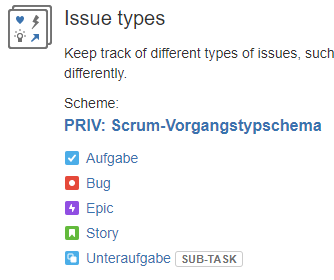
A part of the settings page shows the issue types already present in this project.
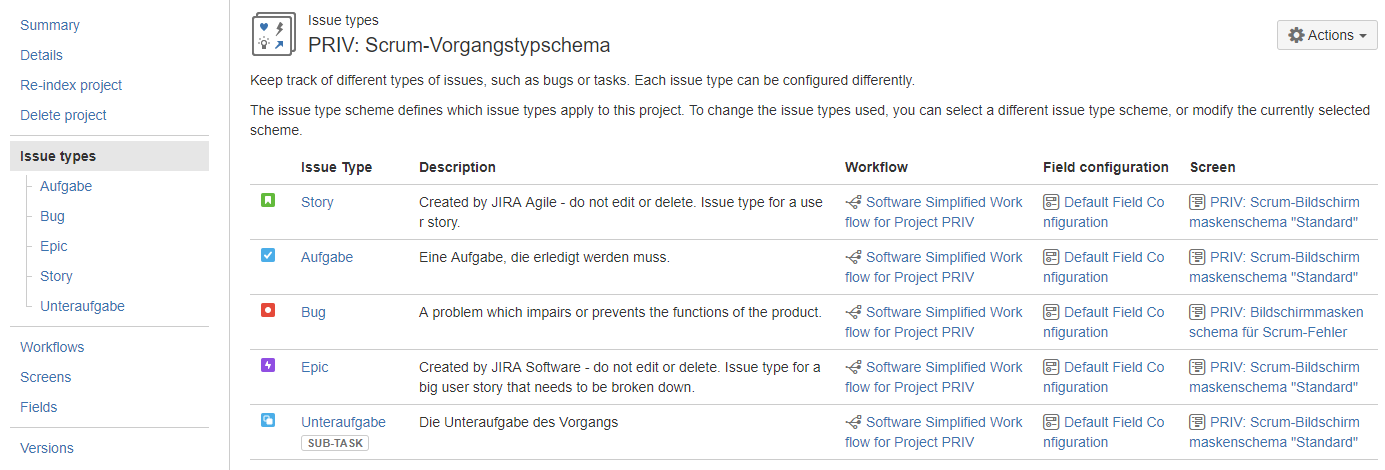
If you click on the Issue types menu item in the left menu, you get a more detailed overview of the types:
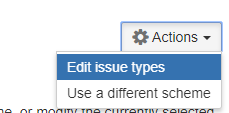
The Actions button in the top right corner is what you need. On the next screen you can pull in issue types you have already defined into the current project.
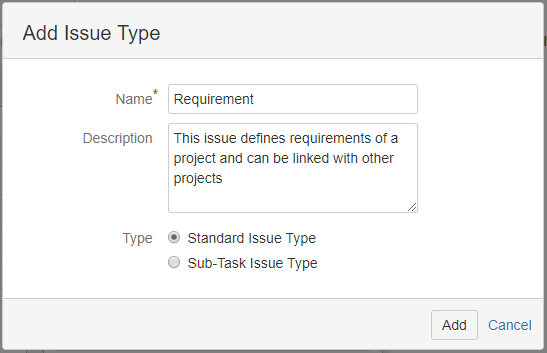
If the issue type is not yet defined, you can create one with the Add issue type button in the top right corner.

When you have defined your new issue type, reload the page to make it appear in the Available issue types column. Now you can move it over to the Issue Types for Current Scheme column.
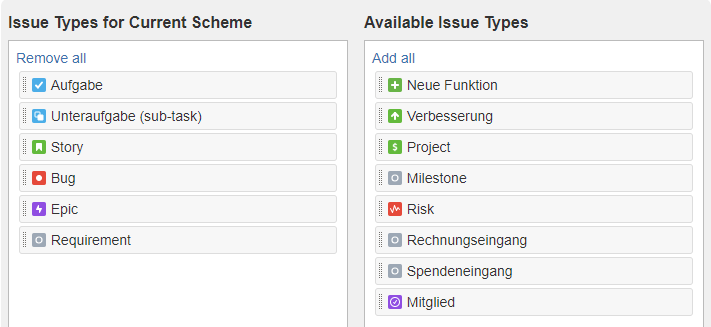
Now click Save. If you don't like the icon of the new issue type, go to the global Issue settings of Jira, find your new type in the list and click Edit.
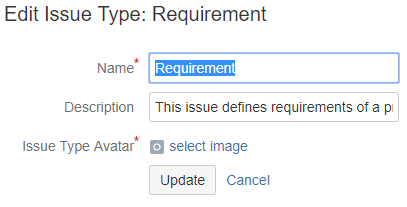
You can now click Select image to change the icon and then click Update to save the changes.
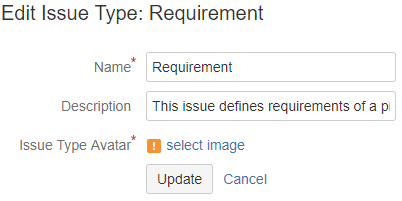
After this, creating a new requirement is straightforward. You can use filters to find requirements that are not yet addressed by any task, story, or test.
Query Requirements with JQL
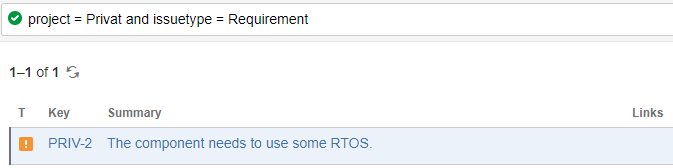
If you want to show only requirements without links, you need a plugin. I
recommend the Script Runner Plugin
from Adaptavist. It provides the JQL function hasLinks() to filter issues
based on their links.
Issue Type Workflow
For some issue types it makes sense to assign a custom workflow. Requirements, for example, are never simply "Done". They typically start in a draft or documentation phase, go through a review (by management, customers, or users) and then enter a demand state. Once a requirement has been satisfied — e.g. through implementation and automated testing — it transitions to an active state where those tests continuously verify it stays satisfied.
How to define a custom workflow will be covered in a separate post.